A loyalty program only works when the customer check-in takes seconds, not when an employee has to search for a login or guess which button to tap. Knowing how to set up the BoomerangMe Scanner app correctly helps your team issue stamps consistently, protect the program from misuse, and keep the customer experience moving at the counter.
The scanner should be treated as an operational tool, not just another app on a phone. A short, structured rollout gives staff clear responsibilities and gives managers confidence that every completed scan is recorded against the right loyalty card.
Prepare Before You Install the App
Start in your BoomerangMe business account, where the loyalty card campaign and its rules are managed. Confirm that the campaign is active, the reward conditions are correct, and the customer-facing card is ready for use. There is little value in configuring a scanner device before the underlying campaign has been reviewed.
Decide which locations, teams, or roles need scanning access. A single-location coffee shop may use one dedicated tablet behind the register. A growing retail or service business may need separate devices for several registers, shifts, or locations. The right approach depends on your traffic volume and how much accountability you need by employee or site.
Before installation, have four items ready: a supported smartphone or tablet, a reliable internet connection, the appropriate BoomerangMe account credentials, and the access or pairing details required to connect the scanner to the campaign. Keeping these details with the manager or system administrator prevents staff from sharing credentials informally.
How to Set Up the BoomerangMe Scanner App
Download the BoomerangMe Scanner app from the relevant mobile app store on the device that staff will use. Install it on a business-controlled device whenever possible. A dedicated device is easier to secure, easier to hand off between shifts, and less likely to be affected by an employee's personal settings or account changes.
Open the app and sign in using the authorized business account or the scanner access method provided through your BoomerangMe setup. Depending on the account configuration and app version, the process may involve entering credentials, scanning a pairing code, or selecting the relevant business and campaign. Follow the prompts on screen and verify the campaign name before moving forward.
This verification step matters. If your business runs more than one loyalty offer, such as separate programs for a café and a salon, staff must be connected to the intended campaign. Scanning customers into the wrong offer creates avoidable correction work later and can cause confusion when rewards do not appear as expected.
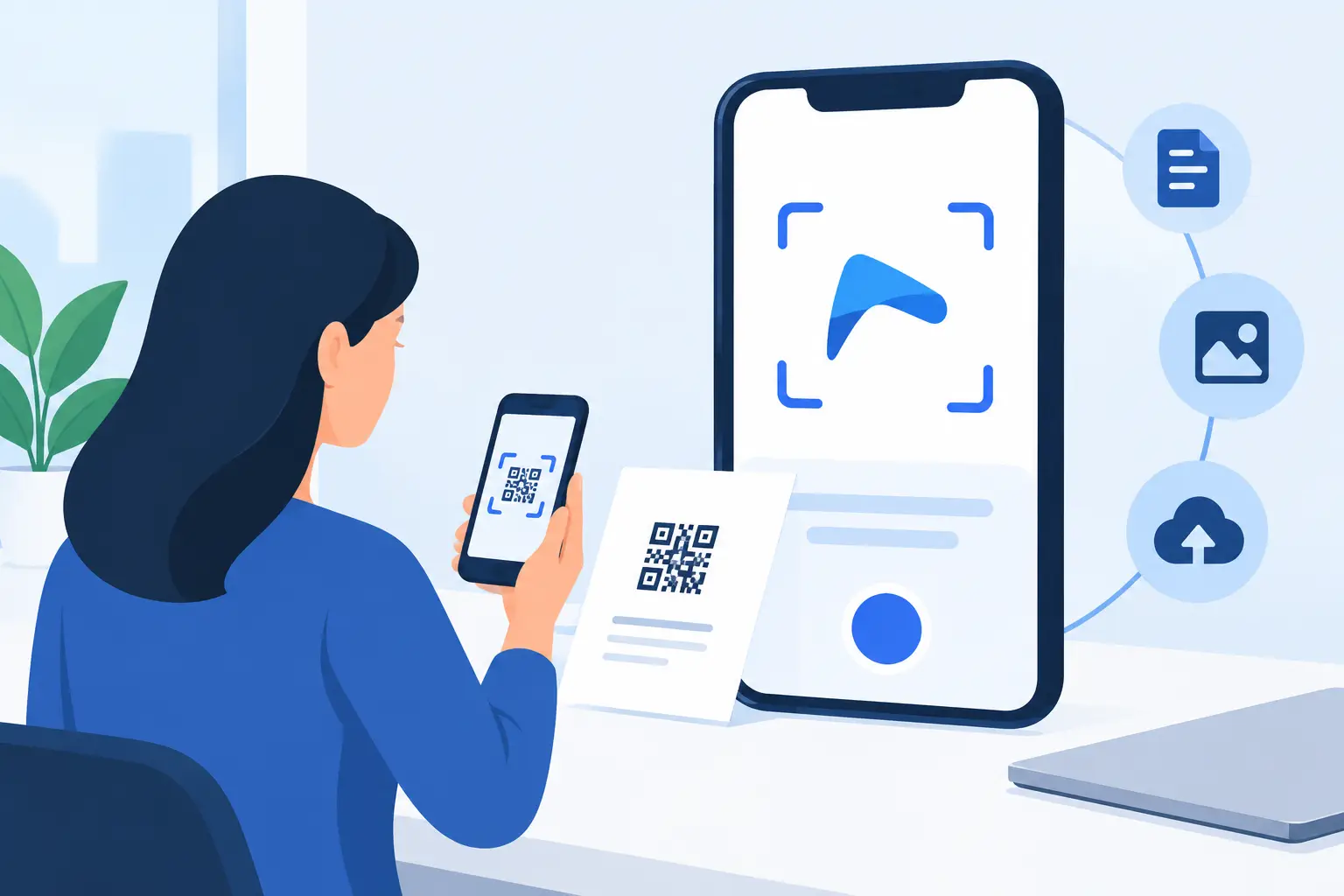
Allow the app to use the device camera when prompted. Camera permission is required to scan the QR code or barcode presented by the customer. If the camera screen remains blank or the app cannot recognize codes, check the device's privacy settings and confirm camera access is enabled for the scanner app.
You should also confirm that the app can reach the internet through your store Wi-Fi or cellular connection. A stable connection is particularly important at the point of service. If the device frequently switches between weak Wi-Fi and cellular data, scans may take longer or fail to sync promptly.
Once the scanner is connected, set up the device for the people who will actually use it. Place the app where staff can find it quickly, keep the device charged, and use a stand or secure counter location if the device stays at a register. Small operational details affect adoption more than most teams expect.
Avoid using an administrator's personal phone as the permanent scanning device. That arrangement can work during a trial, but it creates problems when the administrator is unavailable, changes roles, or leaves the business. It also makes it difficult to determine who is responsible for scans performed during a shift.
For businesses with multiple sites, label each scanner device by location and register. Use a simple naming convention in your internal documentation, such as “Downtown Register 1” or “Northside Service Desk.” Even if the app does not require a device name, your team will benefit when troubleshooting a missing scan or replacing hardware.
Staff access should reflect the level of control each person needs. Most frontline employees need only the ability to scan customer cards and apply the appropriate stamp or visit. Account owners and managers should retain control of campaign rules, reward settings, user management, and reporting. Separating these responsibilities reduces the risk of accidental changes during a busy shift.
Test a Complete Customer Scan
Do not consider the setup complete until you run a live test. Use a test loyalty card, or ask a manager to present an active customer card, then scan its code through the app. Confirm that the correct action is applied and that the card balance, stamp count, or reward status updates as expected.
Test the process from both sides of the counter. The employee should be able to open the scanner, recognize the code, and complete the transaction without needing assistance. The customer should see the updated loyalty activity on their card. If either step is unclear, the workflow needs refinement before a broader launch.
It is also useful to test common exceptions. Check what staff should do if a customer's screen is dim, the QR code will not focus, the device loses its connection, or a customer believes a stamp is missing. The answer may be as simple as increasing screen brightness, cleaning the camera lens, reopening the app, or escalating the issue to a manager. What matters is that staff know the approved response instead of inventing one at the counter.
Train Staff Around the Customer Interaction
Training does not need to be lengthy, but it should be specific. Show employees when to ask for the loyalty card, how to scan it, what confirmation to look for, and when to involve a manager. A five-minute demonstration followed by a few practice scans is often more useful than sending a long instruction document.
Give staff a consistent customer-facing phrase. For example: “Would you like to scan your loyalty card before we finish?” This creates a repeatable prompt without making the interaction feel forced. It also helps employees remember the program during busy periods.
Managers should explain the boundaries as clearly as the process. Employees need to know whether they can correct a missed scan, whether they can scan their own card, and how to handle customers requesting multiple stamps. Loyalty programs can lose credibility quickly if rules are applied differently from one shift to another.
Maintain the Scanner App After Launch
The initial setup is only the first stage. Assign an owner to check the scanner device regularly, especially during the first few weeks. That person should confirm the device is charged, the app is current, staff can sign in, and scans are being completed successfully.
Review app updates before a major promotion or seasonal rush. Updates can improve reliability, but a new permission request or sign-in prompt can disrupt service if no one is prepared. Schedule updates outside peak hours and run a quick test scan afterward.
If a scanner stops working, begin with the basics: verify internet access, confirm camera permission, restart the app, and check that the user is signed into the correct business or campaign. If the problem continues, document the device type, operating system version, time of the issue, and any on-screen message before contacting support. Clear details shorten resolution time.
For businesses that prefer not to manage every deployment detail internally, MBH Web Services can help structure onboarding, staff readiness, and ongoing operational support around third-party SaaS tools. The goal is not simply to get software installed. It is to make sure the process remains dependable after the launch team has moved on.
A scanner app earns its place at the counter when employees trust it and customers barely have to think about it. Set aside time for one real-world test, one focused staff briefing, and regular device checks. Those small habits keep a loyalty program useful long after the first scan.