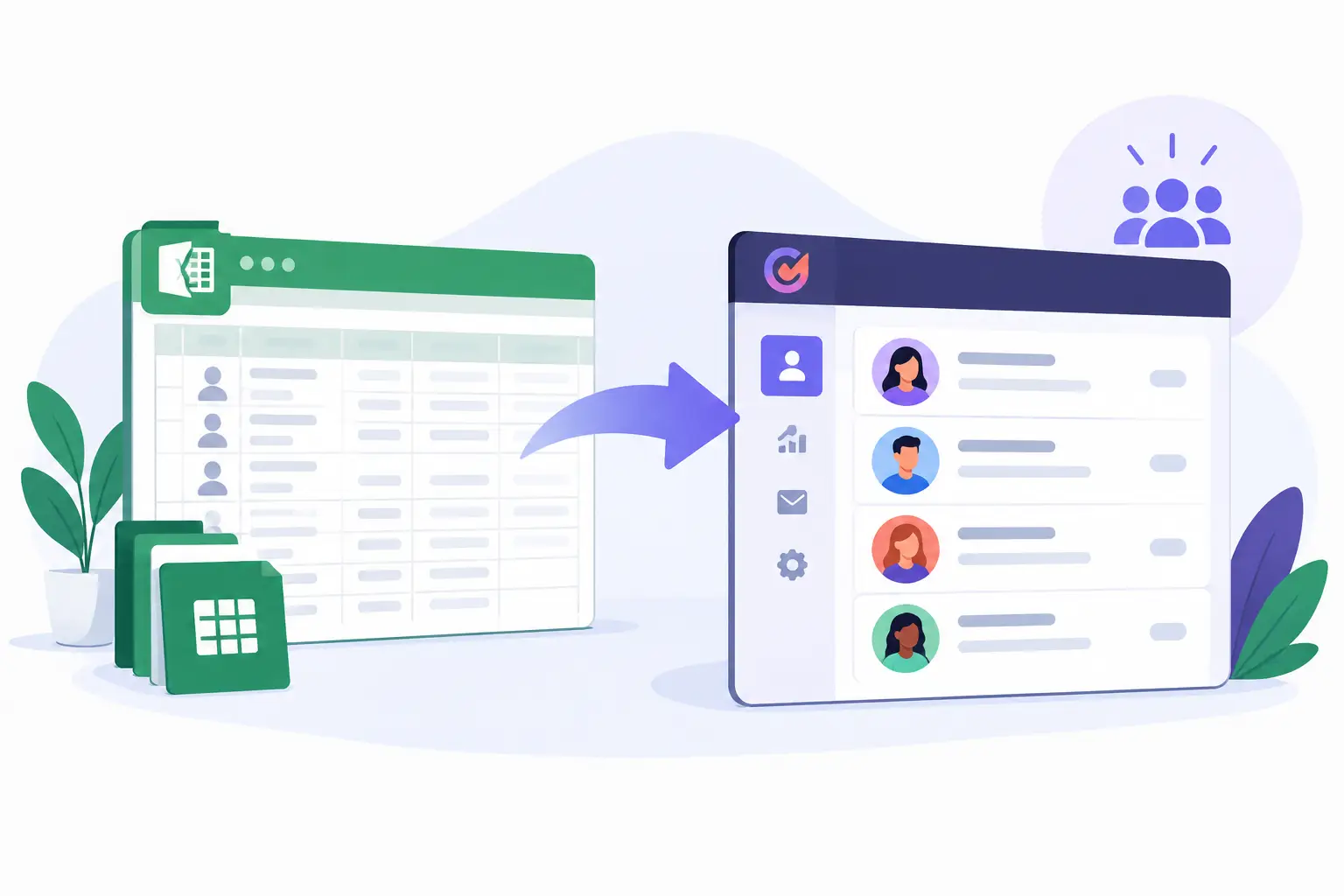
A spreadsheet can hold thousands of contacts, but it cannot reliably tell your team which record is current, who owns the relationship, or what happened after the last call. Knowing how to move from spreadsheets to EngageBay without losing track of your contacts starts with treating the change as a controlled business process, not simply a file upload.
For most small and mid-sized businesses, the real risk is not technical failure. It is carrying duplicate records, incomplete details, inconsistent labels, and unclear ownership into a new system. A thoughtful migration gives EngageBay clean information to work with and gives your employees confidence that they can find the right contact when it matters.
Before anyone exports a CSV file, identify every place where customer and prospect information currently lives. The main sales spreadsheet may be only one part of the picture. Teams often maintain separate lists for newsletter subscribers, event attendees, former customers, referral partners, vendors, and support contacts.
Create a simple inventory that records the file name, business owner, purpose, approximate record count, and last updated date for each source. This prevents a common problem: importing the primary sales list, then learning two weeks later that a department has another file with important relationship history.
At this stage, decide what belongs in EngageBay. Not every name in an old spreadsheet needs to become an active CRM record. For example, outdated vendor contacts or unsubscribed marketing addresses may need to be archived rather than imported. Keeping unnecessary records out of the CRM improves search results, reporting, and user adoption.
Clean the Data Before Moving to EngageBay
A CRM will organize information, but it cannot determine whether two slightly different entries represent the same person. Clean data before import reduces duplicate records and prevents employees from questioning the system from day one.
Begin with the basics. Standardize first and last names, business names, phone number formats, state abbreviations, and email addresses. Remove obvious test records, empty rows, and contacts with invalid or incomplete email addresses when email is required for your intended use.
Then look for duplicates. Match records using email address first, since it is usually the most dependable unique identifier. Where no email exists, compare name, company, and phone number. Be careful with shared inboxes such as info@ or sales@. They may be useful for account-level communication, but they do not always represent an individual contact.
This is also the right time to decide which spreadsheet columns have ongoing business value. Common fields include contact owner, company, job title, source, lifecycle stage, last contact date, notes, and consent status. If a column is rarely completed or means something different to every employee, do not carry it over automatically. Either define a clear use for it or retire it.
Preserve Context That Helps Your Team Act
Migration projects can become overly focused on names, emails, and phone numbers. Those fields matter, but useful context is what makes the CRM operationally valuable. A sales rep may need to know that a prospect came from a referral, requested a proposal in March, or prefers calls after 2 p.m.
Review the notes columns in your spreadsheets. If notes are structured and relevant, preserve them. If they are long, inconsistent, or contain sensitive information that should not be widely visible, decide how to handle them before importing. In some cases, a short standardized field such as "relationship status" is more useful than moving years of unfiltered comments.
Map Spreadsheet Fields to EngageBay Carefully
Field mapping is where a contact list becomes a working CRM database. Match each spreadsheet column to the appropriate EngageBay contact field before importing the complete file. Standard fields usually cover core details such as name, email, phone, company, and address. Custom fields are useful when your business needs to track information unique to its process, such as service territory, account type, renewal month, or referral source.
Use custom fields with restraint. Too many fields make contact records harder to complete and maintain. Ask whether employees will use the information to make a decision, segment an audience, trigger follow-up, or report on performance. If the answer is no, the field may not belong in the first migration.
Define values for fields that require consistency. For instance, if you use a lead source field, establish whether the accepted values are "Referral," "Website," "Trade Show," and "Outbound" before the upload. Do not allow variations such as "web," "site," and "website form" to enter as separate categories. Consistent values improve reporting and prevent confusion later.
Use a Test Import Before the Full Migration
Do not make your first import the final one. Export a small, representative sample of contacts and import it into EngageBay first. Include records with complete details, missing fields, company associations, tags, owners, and notes. This gives the project team a chance to confirm that data appears where users expect it.
After the test import, check several practical questions. Can a team member search for a known contact? Are names and phone numbers formatted correctly? Did the correct owner receive the appropriate records? Are custom fields visible and usable? Can contacts be filtered by the categories that matter to sales, marketing, or service?
If the test exposes a mapping issue, correct the source file and repeat the test. It is far easier to revise 50 records than to clean up 5,000 after a full import. Keep a copy of the original spreadsheet and each revised import file in a controlled location until the project is complete.
Contacts are not just data. They are active relationships, and a migration can disrupt them when ownership is unclear. Before importing, determine who should own each contact or account. If ownership is not currently recorded in the spreadsheet, assign it based on territory, account manager, business unit, or another documented rule.
Open tasks, pending follow-ups, and upcoming renewal conversations need special attention. A contact record without its next action can leave a customer waiting while the team assumes someone else is responsible. Build a short transition list for active opportunities and urgent service matters, then confirm that each item has an owner and due date in the new workflow.
For businesses with multiple departments, define which team owns the record at each point in the customer lifecycle. Sales may qualify a prospect, marketing may manage campaign consent, and customer service may maintain the relationship after purchase. EngageBay can support shared visibility, but your internal ownership rules must be clear first.
Validate the Final Import and Set a Cutover Date
Once the full contact list is imported, validate it against the source files. Compare total contact counts, spot-check records from each source list, and review records by owner, lifecycle stage, and lead source. Check that records intended for marketing use have the appropriate permission status and that suppressed or unsubscribed contacts are handled correctly.
Set a clear cutover date when EngageBay becomes the system of record. After that date, employees should stop adding or editing contacts in the old spreadsheets except for a limited, documented reconciliation process. Running two live systems for too long almost guarantees conflicting information.
You may need a brief overlap period if the team is completing active work from an old file. If so, assign one person to manage changes and import approved updates on a defined schedule. The goal is controlled transition, not indefinite duplication.
Train for Daily Use and Ongoing Maintenance
A successful migration depends on what employees do after launch. Give each user practical training based on their role: how to find contacts, update details, log activities, create follow-up tasks, and recognize when a duplicate may exist. Training should use the team’s real processes rather than generic examples.
Establish a small set of ongoing data standards. Employees should know when to create a new contact, when to update an existing one, which fields are required, and who resolves duplicates. Review these standards periodically as your sales and service processes change.
This is where implementation support can be valuable. MBH Web Services can help organizations move beyond a one-time software purchase by coordinating configuration, onboarding, user adoption, and continuing platform maintenance. The objective is not merely to populate EngageBay, but to keep it dependable as your contact base and team grow.
Your contact database should make the next customer conversation easier, not create a search project. Give the migration enough attention to preserve ownership, history, and data quality, and EngageBay can become a practical operating system for the relationships your business depends on.