You copied the code, saved the change, and opened the website. The chat widget is not there. Before replacing the snippet repeatedly, find out which part of the installation has actually been verified.
When LiveChat is not appearing, begin with the official setup path and the published page. The vendor's code-based instructions place the snippet before the closing </body> tag, then call for refreshing or interacting with the site to verify the installation. (LiveChat setup and verification guide)
If you are evaluating LiveChat, this is a manageable acceptance check. It does not need to become a series of unrelated website changes.
When LiveChat is not appearing, define the exact symptom
Consider an illustrative business owner, Devon. The widget appears on the homepage but not on a service page. That is a different problem from a widget that appears but does not deliver messages.
Record what you can see:
- No widget anywhere: Begin with installation and publication.
- Missing on selected pages: Check intended scope and page layouts.
- Visible but unresponsive: Test interaction and capture the symptom.
- Messages not received: Follow the conversation and account path.
- Desktop works, phone does not: Record the device and browser difference.
These are troubleshooting categories, not guaranteed diagnoses. Their purpose is to avoid solving a message-delivery problem by repeatedly reinstalling the visual widget.
Devon's first useful sentence is specific: “The homepage shows the widget, but this service page does not, in the same browser.”
Confirm the change reached the live website
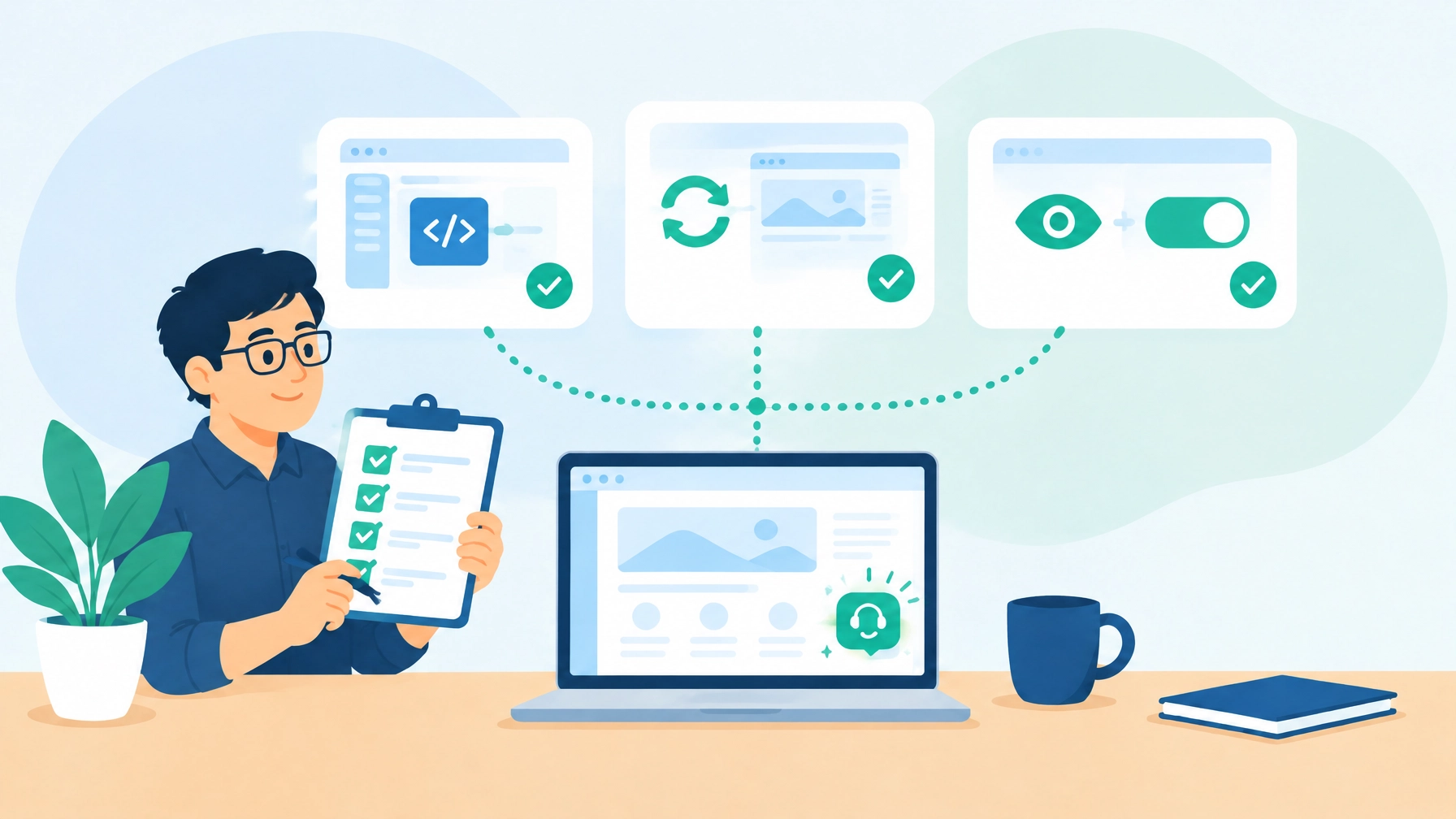
An editor preview and a published page are not the same checkpoint. Devon should confirm that the authorized installer saved and published the intended change, then test the actual public address.
For code-based installation, compare the placement with the official instructions. The vendor distinguishes a shared footer or layout from code added to an individual page, which is relevant when the widget appears in only one place. (LiveChat installation scope)
Ask:
- Which installation method was used?
- Which account supplied the code?
- Was the change published?
- Which pages should receive it?
- Are those pages using the same layout?
Do not add a second installation method merely because the first test failed. Ask the installer to identify what is already present before adding more code or another integration.
Use the instructions for the interface you actually have
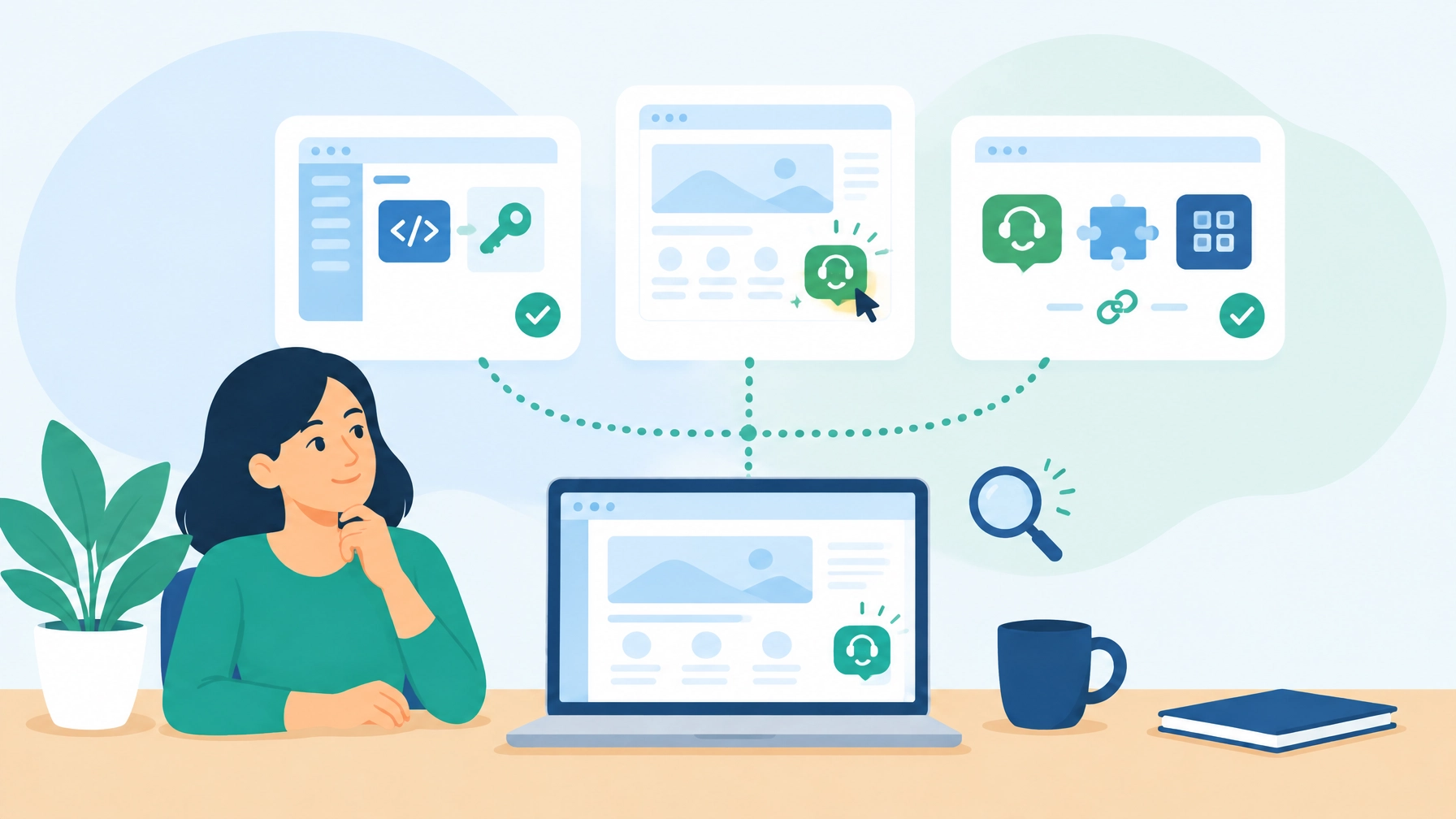
LiveChat's setup article documents both Text and existing LiveChat interfaces. The Text path uses Website widgets, while the LiveChat path uses Channels and Website. Menu differences alone do not prove that the account or installation is wrong. (LiveChat account-interface setup paths)
For Text, the guide says to visit the site, open the widget, and check the website status in the app. It notes that interaction may be needed before that status updates. (LiveChat verification instructions)
Devon should record the interface shown in the account and the current verification result. That is more helpful than insisting that a button from an older video must be present.
If the widget does not appear at all, capture that separately from an app status that has not updated.
Compare visitor conditions without bypassing controls
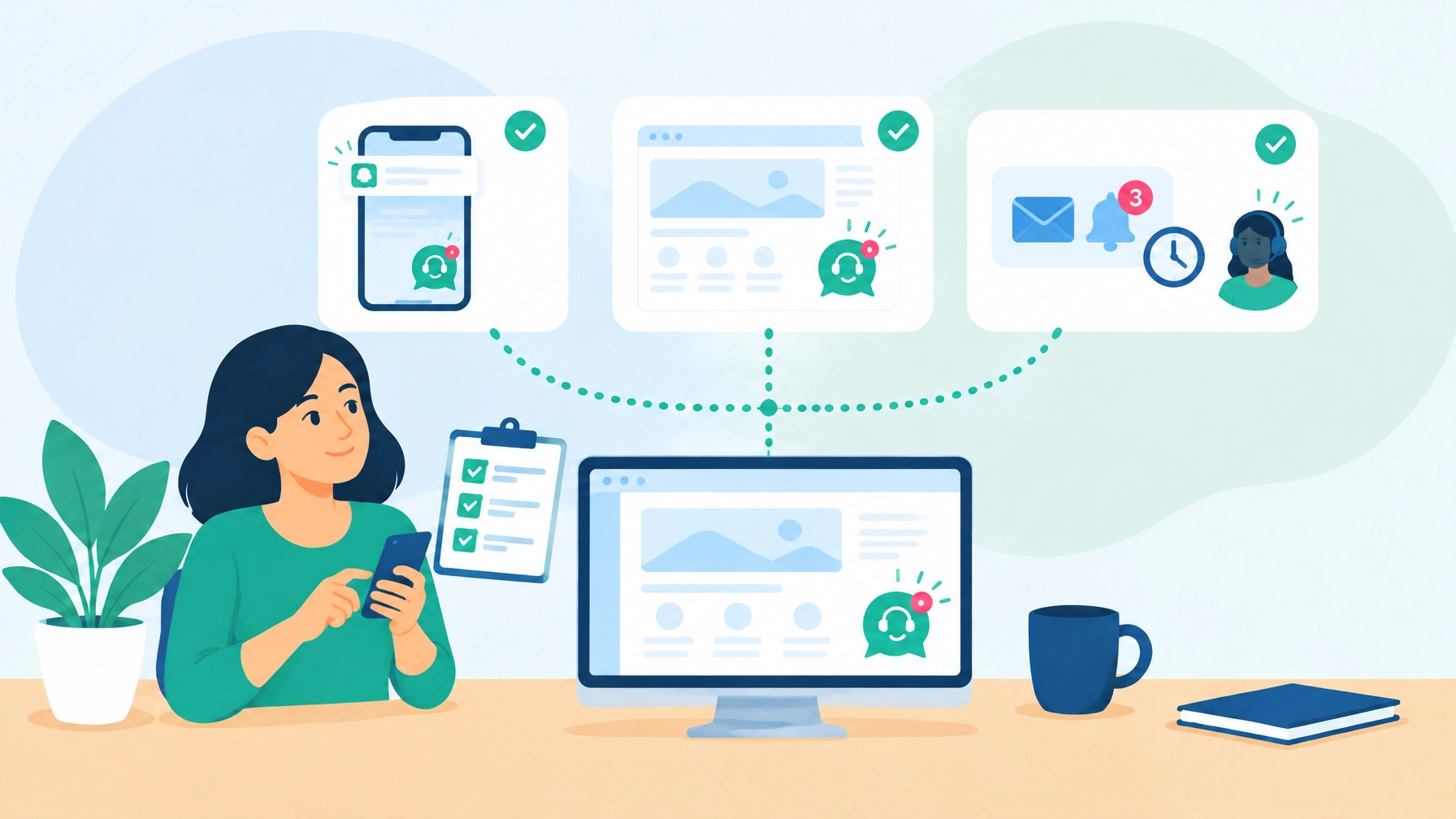
Try the same public page in another ordinary browser and on a phone. Record whether the behavior changes and what permissions or site choices were made.
If the website uses consent controls, caching, a tag manager, or browser extensions, give those details to the installer as possible areas to investigate. These are diagnostic possibilities, not claims that any particular one is causing the problem.
Do not disable privacy controls on the production site to force the widget to load. Have the responsible administrator check the intended behavior and the approved implementation.
For Devon, a consistent missing widget on one page points toward a focused page review. A difference between browsers calls for a different comparison. Neither justifies deleting unrelated site code.
Test a conversation after the icon appears
Devon's issue is not finished when the icon returns. The customer needs to be able to open it, send a message, and receive a reply.
Run the complete test from a visitor session. Check the receiving account, the assigned staff member's awareness, and the reply visible on the website.
The related LiveChat coverage guide helps with the operating plan after installation. A technically visible widget is not a substitute for deciding who answers.
Also check mobile placement. If the restored widget covers the button a customer needs, the installation still needs adjustment.
Give support a report they can use
If the problem remains, collect the exact public URL, installation method, account interface, device and browser, expected behavior, observed behavior, and time of the test. Include a screenshot that does not expose private customer information or credentials.
Record whether the issue affects all pages or only certain layouts. Give support the shortest repeatable sequence that produces it.
Review the official setup steps for LiveChat before making a new purchase or broad website change to solve an installation issue. MBH Web Services can help diagnose the handoff if needed, but a precise symptom and a verified installation path are the best place to begin.