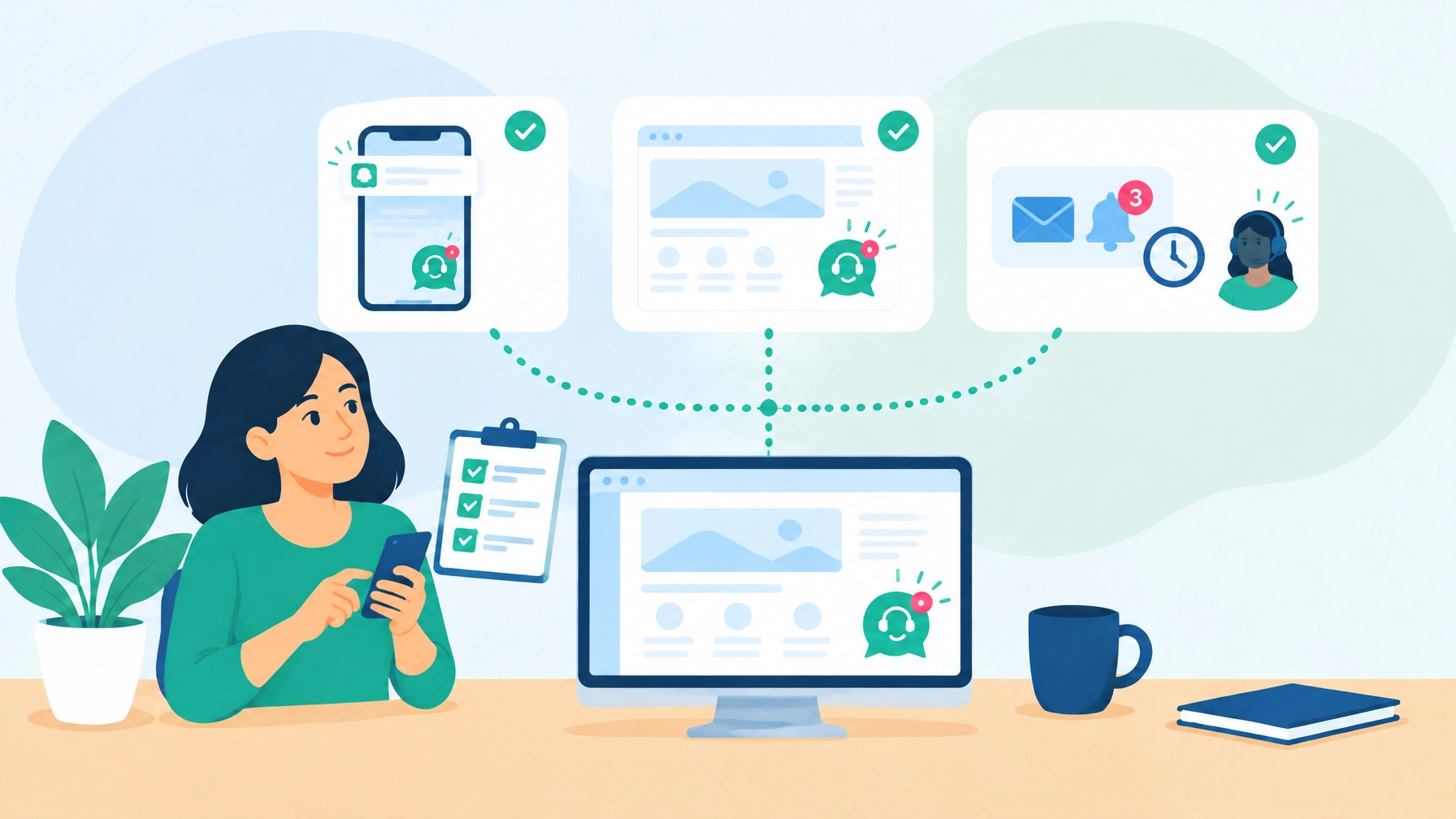
The chat widget can work while the person responsible for answering never notices the message. That is why a launch test needs to include the alert on the device someone will actually be watching.
LiveChat notifications depend on more than one setting. The vendor documents browser permissions, notification preferences, and mobile options that suppress alerts when you are active on desktop or not accepting chats. A quiet phone may reflect the selected settings rather than a broken widget. (LiveChat browser notification guide, LiveChat mobile notification troubleshooting)
Before inviting customers to use LiveChat, test who gets notified in the situations your business expects.
Test LiveChat notifications against the coverage plan
Consider an illustrative repair business run by Ellis. Ellis answers chats at a desk in the morning and relies on a phone while away from the office.
That creates at least two different test conditions. “It worked once” does not establish that the handoff from desktop to mobile is ready.
Write down:
- Desk coverage: Who is accepting chats and watching the computer?
- Mobile coverage: Who is responsible while away?
- Status changes: When should staff stop accepting chats?
- Missed conversation: Who reviews unanswered activity?
- Fallback: What should the customer do if an immediate response is unavailable?
These are operating decisions to verify in the chosen configuration. Do not promise continuous availability simply because the app can be installed on a phone.
For Ellis, the expected alert path should be explicit before the test begins.
Check browser permission and app preferences separately
LiveChat's browser notification guide says notifications must be enabled in the app and allowed by the browser. It also describes selecting notification preferences through the profile menu. (LiveChat browser notification settings)
Ellis should confirm both layers. A checked box in the app does not settle a blocked browser permission.
The first desk test is practical:
- Use the browser and computer normally used for chat.
- Confirm the intended notification preferences.
- Review browser permission for the chat application.
- Send a message from a separate visitor session.
- Check the visual alert and the receiving conversation.
If sound matters, test it as a separate requirement. LiveChat's guide distinguishes sound preferences from visual notifications, so a silent alert does not automatically mean no notification was delivered. (LiveChat sound preferences)
Use the current browser's permission controls rather than relying on an old screenshot of where a menu used to be.
Check why mobile alerts might be intentionally quiet
The mobile troubleshooting guide directs users to Profile and Notifications. It describes Do Not Disturb settings for being active on desktop and for not accepting chats. With those settings enabled, the expected destination or availability of alerts changes. (LiveChat mobile alert preferences)
Ellis should therefore test the intended combinations:
- Desktop active: Does the alert behavior match the selected preference?
- Desktop no longer used: Does mobile coverage work as planned?
- Accepting chats: Is the responsible person in the intended status?
- Not accepting chats: Is the resulting behavior understood?
Do not turn every alert on merely to make the test noisy. Configure the behavior the business actually needs, then confirm it.
Also review the phone's notification permission and its current quiet-mode settings. The vendor's mobile guide identifies device-level notification controls as part of troubleshooting. (LiveChat device notification checks)
Test a missed message without pretending it is handled
Ellis should deliberately leave one harmless test conversation unanswered, then inspect what the selected setup records and what staff must do next. Use an authorized tester who knows it is a drill.
The business needs to answer:
- Visibility: Where can staff identify the unanswered conversation?
- Responsibility: Who checks it?
- Customer expectation: What did the visitor see?
- Follow-up: What information is available for a permitted response?
- Hours: Does the displayed availability match the staffing plan?
These are acceptance questions, not a promise of any specific missed-chat automation or plan feature. Verify the actual result before writing a procedure around it.
The existing LiveChat guide for a small support team offers related coverage planning. A realistic availability promise is more useful than an unattended widget that appears to offer immediate help.
Use diagnostics before starting over
If mobile alerts still fail, LiveChat's guide includes a troubleshooting option under Profile and Notifications that runs a diagnostic test and can generate an error report. Use that supported path before reinstalling everything or changing unrelated website code. (LiveChat mobile notification diagnostic)
Ellis should record the device, app state, accepting-chat status, notification preferences, and whether the desktop app was active. Those details help distinguish an expected suppression setting from an unresolved problem.
Repeat the same test after making a change. Changing several settings at once makes it harder to know what actually fixed the issue.
Launch when the right person notices the message
Ellis is ready when desk and mobile alerts behave as intended and the team knows what to do with an unanswered conversation. That is a stronger launch standard than seeing the widget on the homepage.
Evaluate LiveChat using the coverage pattern your business will really operate. MBH Web Services can help with the setup if needed, while your own notification test provides the clearest evidence that the system is ready for customers.