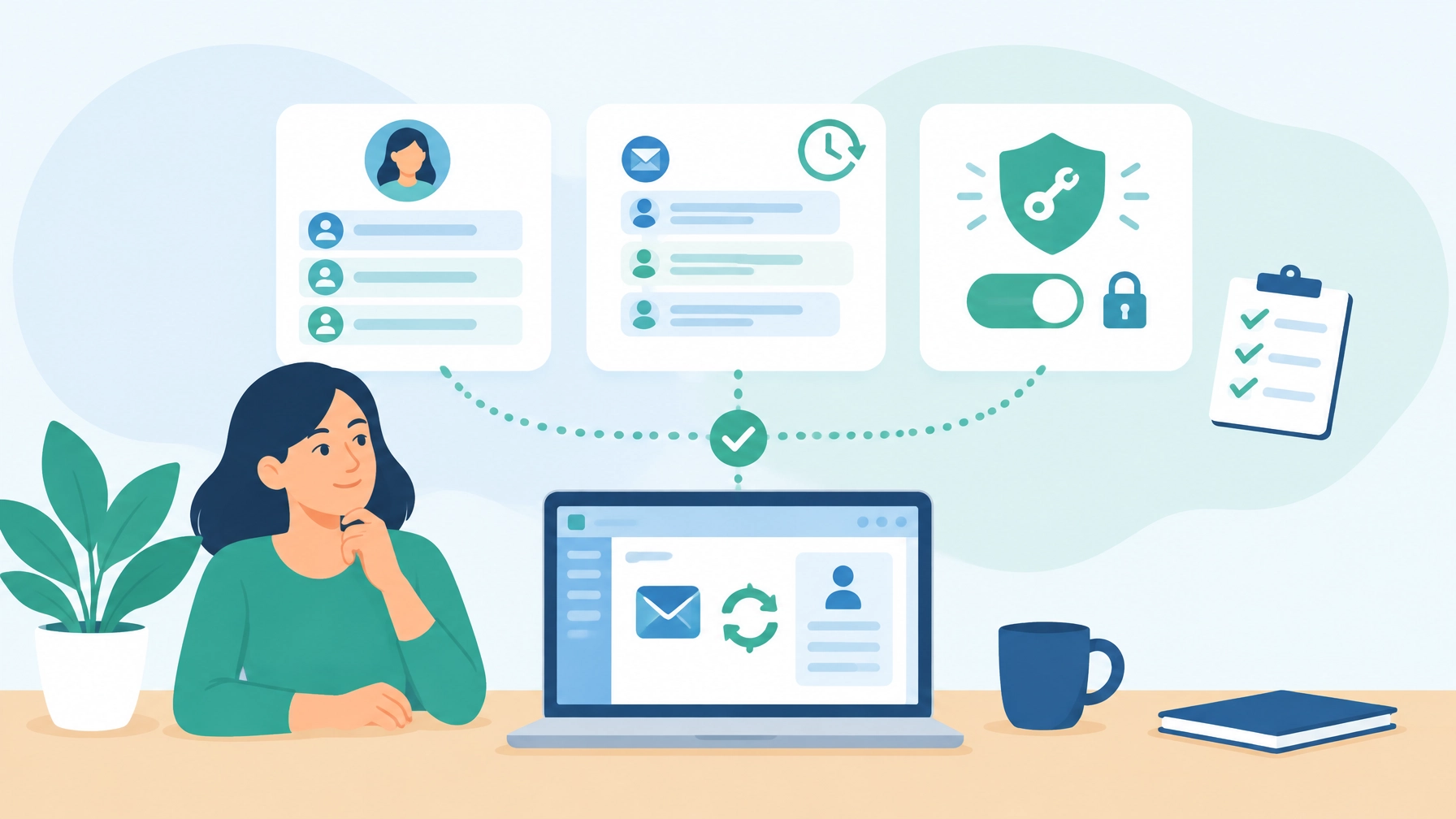
Connecting your inbox to a CRM sounds like a simple convenience. The important decision is what the connection should bring into the account and who should be able to see it afterward.
EngageBay email sync includes choices about creating contacts from existing and new emails and syncing existing conversations. Those are separate settings in the vendor's instructions, not one harmless switch. Review them before connecting EngageBay to a mailbox that mixes sales, personal messages, and sensitive business discussions. (EngageBay two-way sync instructions)
The right setup can be narrower than the most convenient-looking setup.
Consider an illustrative design studio run by Morgan. The studio's owner uses one inbox for prospects, client approvals, invoices, school notices, and conversations with the bookkeeper.
Morgan wants customer conversations available to the sales workflow. Morgan does not want every correspondent turned into a CRM contact or every old thread brought into a shared business system without review.
Before connecting, write down:
- Mailbox purpose: Is this a dedicated sales inbox or a mixed-use account?
- Account authority: Who is authorized to connect it?
- History: Which past conversations should be available?
- Contact creation: Should new correspondents become contacts?
- Visibility: Which team members should see the resulting information?
This is not a reason to avoid integration. It is a reason to choose its boundary.
Confirm EngageBay email sync access on the intended plan
EngageBay documents adding an email account through the profile menu, Preferences, and Email Accounts. Its setup article lists Gmail, IMAP, Office 365, Outlook, and Exchange among the available account types. (EngageBay email connection guide)
A separate EngageBay article identifies two-way email sync with the All-in-One Pro plan. Because access determines the buying decision, confirm the current entitlement in the account or with the vendor rather than assuming that every free or entry-level account includes it. (EngageBay two-way sync plan guidance)
Morgan should verify the exact mailbox provider, connection method, and plan before budgeting the workflow. A feature is useful only if it is available in the version the business intends to buy.
Keep the authorization with the mailbox owner or approved administrator. Do not pass the mailbox password around to simplify a contractor's setup task.
Treat contact creation and history as separate decisions
The vendor's instructions describe options to create contacts from existing emails, create contacts from new emails, and sync existing conversations. Read each setting against the mailbox's actual contents. (EngageBay sync settings)
For Morgan's mixed inbox, enabling every option immediately is not a reasonable default. A dedicated sales mailbox may be a cleaner pilot, provided it fits the way the business actually communicates.
Ask three different questions:
- Which people should become CRM contacts?
- Which conversations belong with those records?
- Who should be able to read them?
Answering the first question does not answer the other two. A contact record that belongs in the CRM does not automatically justify importing every message the business has exchanged with that person.
If the available controls cannot provide the boundary you need, pause and ask about the supported alternatives. Do not assume you can repair an overly broad import later without consequences.
Test with ordinary messages and an awkward case
Morgan should pilot the intended configuration with authorized test accounts. Use a harmless incoming message, a reply, and a second conversation that should not become part of the sales workflow.
The test should establish:
- Association: The right conversation appears with the intended contact.
- Contact creation: New records follow the selected setting.
- Replies: The conversation behaves as expected in the chosen workflow.
- Visibility: Each team role sees only what the business approved.
- Exceptions: Unrelated messages are handled according to the agreed boundary.
These are recommended acceptance tests, not promises about an untested account's permissions or sync behavior. If a result is unclear, document the settings and ask support before connecting the owner's full mailbox.
The business should also know how to disconnect the account and what happens to previously synced information. Ask that question before you need an emergency reversal.
Make the buying decision about the resulting workflow
Morgan does not need an impressive list of integrations. Morgan needs the next person handling a prospect to find the relevant conversation without exposing unrelated email.
The existing EngageBay sales pipeline guide explains what those conversations should help move forward. Sync is useful when it supports that work, not when it simply fills the database.
Review the current plan and email settings in EngageBay, then pilot one appropriate mailbox before connecting the rest. MBH Web Services can help if the permissions or handoff need attention, but a successful evaluation should leave you knowing what enters the CRM and who can see it.